
📝 Description:
Learn how to take a screenshot on laptop with this easy, step-by-step guide for Windows and Mac. Includes shortcuts, tools, and expert tips for beginners.
📸 How to Take a Screenshot on Laptop – Complete Guide for Windows & Mac Users
In today’s digital age, knowing how to take a screenshot on a laptop is a must-have skill. Whether you’re saving important information, reporting a bug, or sharing your screen with someone — screenshots help you communicate faster and more clearly.
This guide will teach you how to take a screenshot on a laptop using built-in features and tools available on both Windows and MacBooks. Perfect for beginners!
🖥️ How to Take Screenshot on a Windows Laptop
1. Using the Print Screen (PrtScn) Key
- PrtScn: Captures the entire screen to clipboard. Paste into Paint or Word using
Ctrl + V. - Alt + PrtScn: Captures only the active window.
- Windows + PrtScn: Captures full screen and saves it to:
This PC > Pictures > Screenshots
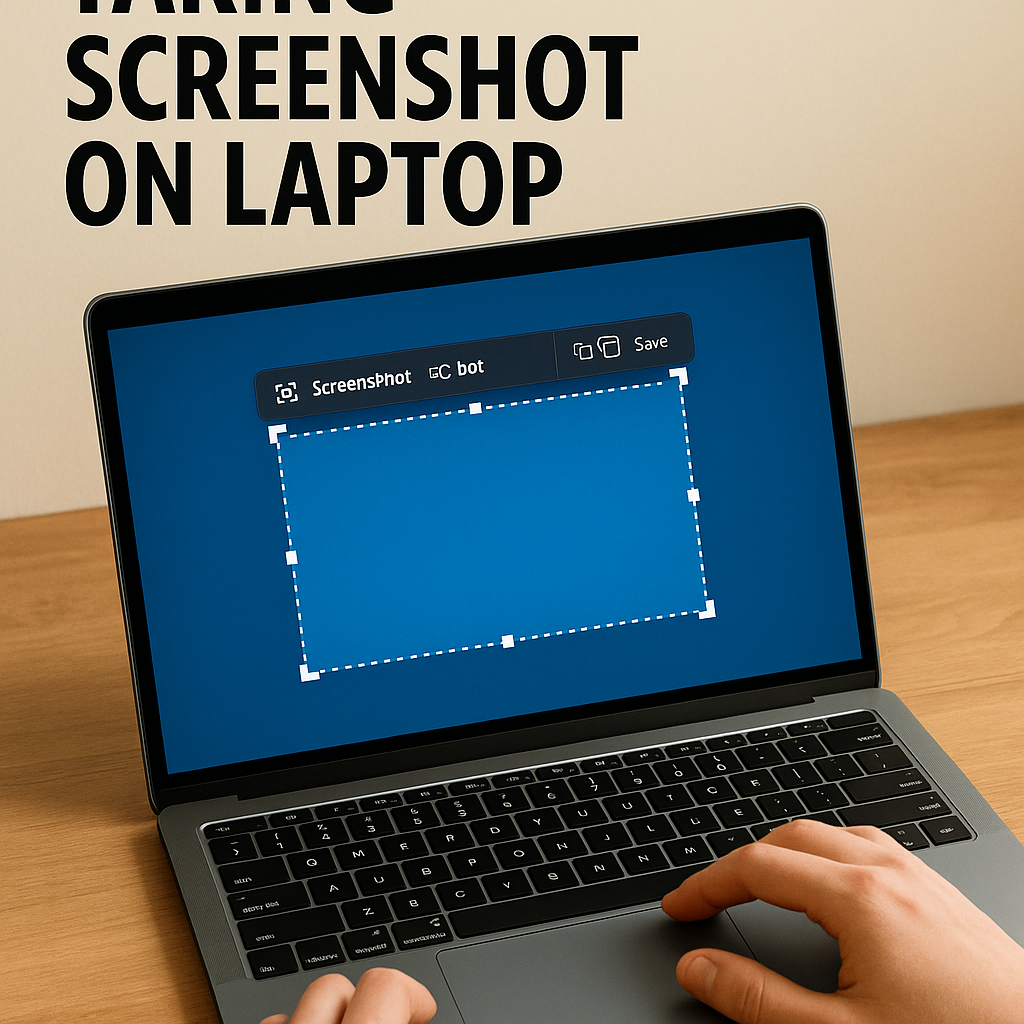
2. Using Snipping Tool / Snip & Sketch
These tools are built into Windows 10 and 11.
- Open from Start Menu: Search for Snipping Tool or Snip & Sketch.
- Click New, select the area, then save or edit the screenshot.
Quick Tip:
👉 Press Windows + Shift + S to capture a custom area instantly.
3. Using Xbox Game Bar
Gamers love this option!
- Press Windows + G to launch the Game Bar.
- Click the camera icon or press Windows + Alt + PrtScn.
- Screenshots are saved under:
This PC > Videos > Captures
🍎 How to Take Screenshot on MacBook
1. Capture Entire Screen
- Press
Command (⌘) + Shift + 3
Screenshot is saved directly to the desktop.
2. Capture a Selected Area
- Press
Command (⌘) + Shift + 4
Drag the crosshair to select a region.
✅ Pro Tip: Press Spacebar after selecting to capture a window.
3. Screenshot Toolbar (macOS Mojave+)
- Press
Command + Shift + 5
Access full screen, window, or recording options.
🛠️ How to Edit and Save Screenshots
On Windows:
- Use Paint, Photos, or Word to crop and annotate.
On Mac:
- Open screenshots in Preview or Photos for editing and sharing.
🌐 Best Free Screenshot Tools & Extensions
| Tool | Platform | Features |
|---|---|---|
| Lightshot | Windows/Mac | Simple, fast, lightweight |
| Greenshot | Windows | Free, annotation features |
| Snagit | Windows/Mac | Paid, professional-level |
| GoFullPage | Chrome | Captures entire web pages |
💡 Tips for Better Screenshots
- Save screenshots in named folders (e.g., “Receipts”, “Errors”).
- Rename files for clarity (e.g.,
meeting-summary.png). - Blur personal info before sharing.
- Use high-res captures for work or tutorials.
📌 Conclusion
Now that you know how to take a screenshot on laptop, you can easily capture anything from your screen — whether on Windows or Mac. With these keyboard shortcuts and tools, you’ll save time and communicate better.
Start practicing today and become a screenshot pro in no time! 📷💪
👉 FAQs – Quick Answers
Q: Where are screenshots saved?
A:
- Windows:
Pictures > Screenshots - Mac: Desktop (by default)
Q: Are these tools free?
A: Yes! Tools like Lightshot and Greenshot are free to use.
- 📺 YouTube: https://www.youtube.com/channel/UCT6BSqZ558SPgXx1mF235vQ
- 📷 Instagram: https://www.instagram.com/howto_29/
- 📘 Facebook Page:https://www.facebook.com/pages/?category=your_pages&ref=bookmarks





Your Client 1

Your Client 2

Your Client 3